Menu
Login
Language
DE EN FR ES IT CZ
Back

Game Resolution Problem

  • #1, by ygmantell Friday, 30. June 2017, 04:23 9 years ago Quote
    Hey everyone!
    I havent posted in a long, long time, due to the formation of my own Indie Studio(!).
    After releasing two games, I decided to get back to the point n' click genre, so, naturaly, I went with VS! smile  But I've run into a problem...

    I'm making my game with pixel art, so I made backgrounds, then scaled them up to 1280 x 720 in Photoshop. 
    However, when I play the game, the window still appears to be very small.
    I've looked through all of the options, and cannot find any settings for this.

    I'm using a laptop with a 4K screen, so maybe its just that, in comparison to the rest of the screen it looks small?  If it is just that, is there a way to scale up the window?

    Thanks so much!
    Great Poster

    274 Posts

  • #2, by sebastian Friday, 30. June 2017, 07:52 9 years ago Quote
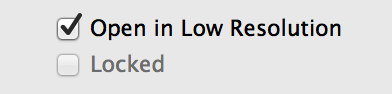
    you could try to open the apps information per right click and activate that low resolution option... 

    Thread Captain

    2346 Posts

  • #3, by afrlme Friday, 30. June 2017, 11:29 9 years ago Quote
    you could try to open the apps information per right click and activate that low resolution option... 
    You mean the high dpi scaling option Sebastian, aye? grin

    Imperator

    7290 Posts

  • #4, by sebastian Friday, 30. June 2017, 12:42 9 years ago Quote
    you could try to open the apps information per right click and activate that low resolution option... 
    You mean the high dpi scaling option Sebastian, aye? grin

    does it get renamed? 

    Thread Captain

    2346 Posts

  • #5, by afrlme Friday, 30. June 2017, 12:59 9 years ago Quote
    I was talking about the "disable display scaling on high dpi settings" option. Think that usually does the trick for people on large resolution monitors.

    Imperator

    7290 Posts

  • #6, by ygmantell Friday, 30. June 2017, 16:42 9 years ago Quote
    Thank you for your replies!
    I actually am on Windows at the moment and don't know the equivilent.  Any ideas?

    Thanks!

    Great Poster

    274 Posts

  • #7, by sebastian Friday, 30. June 2017, 17:40 9 years ago Quote
    thats the windows setting afrlme mentioned (mine was for macos) 

    . exe rigjt click > Properties . Tab Compatibility->Settings->"Disable display scaling on high DPI settings" 

    Thread Captain

    2346 Posts

  • #8, by ygmantell Friday, 30. June 2017, 18:23 9 years ago Quote
    Okay, did that, but now the entire editor looks small, with all the text and images scaled down.  The opening window thingy is now cut off and I cant even select my project to open it.  

    I did what you said to the engine .exe.  Should I have done it to the Player one?

    Thanks!

    EDIT: Undid it to Editor and did it to Player.  Still nothing, other than the fact that the player window is centered on my screen....

    Great Poster

    274 Posts

  • #9, by sebastian Friday, 30. June 2017, 20:08 9 years ago Quote
    Im not sure what has to be done on windows for this to work correctly. 

    Thread Captain

    2346 Posts

  • #10, by ygmantell Friday, 30. June 2017, 20:21 9 years ago Quote
    Okay, thanks anyway!
    I guess Ill try it on another computer to see if it's the scaling.

    Thanks!

    Great Poster

    274 Posts

  • #11, by ygmantell Monday, 03. July 2017, 18:14 9 years ago Quote
    Okay, I hate to be a pain, but once I started putting text on screen, it really became an issue.
    There's no way to fix this?!

    Thanks so much!

    EDIT:  If I scale everything up once more to make the image bigger, then increase the resolution in the Explorer, it will probably be fine on my computer, but it will be too large on the majority of other monitors.  There's really no way to have it scale up?

    There is no maximize button in the player window like there is in every other window.  This would be extremely useful...

    Thanks!

    Great Poster

    274 Posts