Login / Registrieren
DE EN FR ES IT CZ
Zurück Nach oben

Blinking

  • #1, by zurik 7 years ago Zitieren
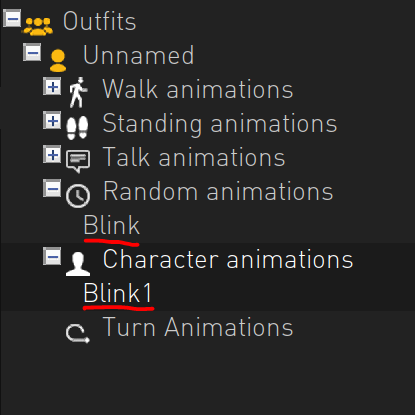
    Hey, how do I add blinking (or similar: for example looking around) animations without using Lua? I am guessing I have to input a blinking frame to Random animations folder in the Outfits menu for the NPC character? What next?  
    Thanks
  • #2, by sebastian 7 years ago Zitieren
    thats it. These random animations gdt played from time to time randomly
  • #3, by zurik 7 years ago Zitieren
    Cool. Can I adjust how often the random animations should play? 
  • #4, by afrlme 7 years ago Zitieren
    Cool. Can I adjust how often the random animations should play? 

    Yes, with Lua - haha grin
    Characters["Tom"].Outfits["default"].RandomMinTime = 1000
    
    Characters["Tom"].Outfits["default"].RandomMaxTime = 3000

    Now, you need to take into account that you need to do this for every character/characters outfit that you want to change the min/max random animation time for.

    here's a tutorial I created a while back for adding dynamic blinking to characters - I think I've refined it since then, but it's still valid.
  • #5, by zurik 7 years ago Zitieren
    Thanks. 
    Sorry, I am not very experienced with Lua grin
    Outfits["Unnamed"], but where/how do I define which animation's RandomMixTime I am adjusting?   

    Characters["Tom"].Outfits["default"]. ----  here?-----.RandomMinTime = 1000
  • #6, by afrlme 7 years ago Zitieren
    Random animation min/max time is global for the outfit, you can't specify which random animation it should play, hence why it would probably be better to use the method in my tutorial that I linked, if you want something more consistent.
  • #7, by zurik 7 years ago Zitieren
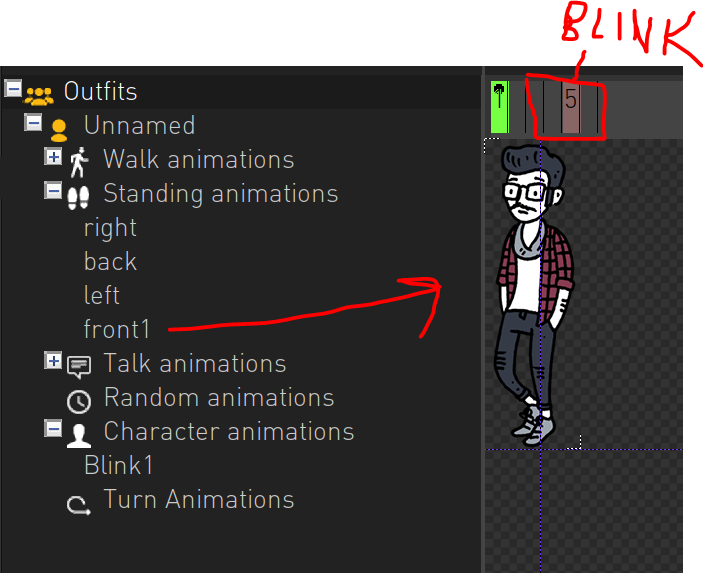
    Thanks. I managed to add a random blinking for my character with your code, but even though I adjust random value to "as often as possible", he blinks very rare.

    Is there any difference where I put the animation, when it's controlled by Lua anyways?
  • #8, by afrlme 7 years ago Zitieren
    For me, I inserted the animation into the idle animations because the character breathes & I didn't want the blink animation interrupt that, but you are correct, it can be added as an animation under character animations, but you need to call the correct one based on direction the character is facing - that was another thing that blending my idle animations with blink animations took care of.
  • #9, by zurik 7 years ago Zitieren
    I must say this is not very easy to understand grin But I am trying.
    So if I put the blinking in the Standing Animations with  a random timing variable, can I do it like this and write this code in the first script?

    if math.random(20) < 15 then
     ActiveAnimations["front1"].AnimationLastFrame = 1
    else
     ActiveAnimations["front1"].AnimationLastFrame = 5
    end


  • #10, by afrlme 7 years ago Zitieren
    Hmm... if you are not planning on using more than 1 frame for idle animations then controlling the global pause value would be better. My tutorial was intended for idle animations that contain multiple animation frames. It works by querying a random number generated by math.random & then uses that query to determine if it should display the animation up to whatever the default idle animation frame total number should be, or it displays the entire animation including the blink animation.

    It won't work very well with a single frame because it's looping & querying every single frame.

    As I was saying, if you plan on using a single frame, then it would be better to change the global pause value between frames instead - taking into account that you need to edit the next frame & set the global pause between frame back to the default number it's supposed to be.

    Animations["example"].AnimationPause = math.random(60, 3000)

    so what we are doing in the code example above is setting the global pause between animation frames to a random number between 60ms & 3000ms. The smallest value should be whatever the default pause value is that you set - unless you always want a larger delay.
  • #11, by ivan-parketov 5 years ago Zitieren
    Hello. I used the blinking tutorial, but the result was not random. I thought that the character will blink once out of three, but he blinks or does not blink constantly until the animation changes. I tried to make the function math.random() recalculate the value every time the animtion loop starts, but it didn't work. What am I doing wrong?

    1. if ActiveAnimations["animation_name"].AnimationCurrentSpriteIndex == 1 then
    2. blink = math.random(20)
    3.   if blink < 13 then
    4.    ActiveAnimations["animation_name"].AnimationLastFrame = 11
    5.   else
    6.    ActiveAnimations["animation_name"].AnimationLastFrame = 12
    7.   end
    8. end